
Add icon to your profile
The majority of you have opted for our default icon or do not realize that you can upload a photo Logo or poster or other image to your profile that will appear in the Directory and on homepage active members.
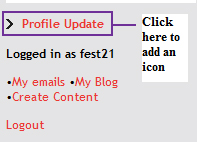
To upload a photo/image or choose an icon, simply visit Profile Update link and select Upload Picture
Include a video in your profile
Upload a video from your computer.
Your account offers you a significant amount of storing space (500M) allowing to upload a few videos.
Of course you do not have to upload videos but you should at least upload one (trailer, awards...) to have something in the "My videos" and enjoy a better visibility in the community.
- 1. Start uploading : click "create content/video" tab
http://www.fest21.com/en/node/add/video-flashvideo
- 2. Select the file to upload, give it a title, a text description (centered)
- 3. Click the submit button at bottom of page, do not close until the video is saved appears.
- 4. Click share this to publish to twitter or facebook
Include a video that has already been posted on the web.
You can publish as many videos as you like from an account on different platforms like youtube, vimeo, dailymotion...
They will need to be published in just a few clicks and coy paste as a "text blog" http://www.fest21.com/en/node/add/blog
1. COPY code
Locate your video and grab the embed code
- Vimeo
Check on the vimeo video the </> link on the right of the video window, once opened select the "old embed code" : paste the embed code which starts with "<object width="400" height="225"> ..., (again NOT the new flash one that begins with <iframe ...
you can personalize the size and make it for instance 600 pixels wide : see link in the embed frame that says personalize
- A video from youtube
click on the video page the "share" button (below the video)
Click "Embed"
Select the old embed code and copy, you can also choose the size.
2. Paste your code on fest21
On fest21.com blog text select html and paste there.
Once done you cannot edit, so if you want to add a text above the video, a photo, be sure to start with text and finish with the video.
The whole process takes about 15 seconds per video.


